> For the complete documentation index, see [llms.txt](https://docs.konvu.com/konvu/llms.txt). Markdown versions of documentation pages are available by appending `.md` to page URLs; this page is available as [Markdown](https://docs.konvu.com/konvu/triage-and-remediation/triage/triage-list-view.md).
# Triage List View
Your filterable, sortable view of all findings. Filter by assessment result, severity, repository, and more. Dismiss in bulk or re-trigger assessments.
The Triage List is where you work through findings. It shows every SCA finding across your connected scanners in a single table, with filters and quick tabs to narrow down to exactly what you need.
## Quick tabs
Across the top of the list, quick tabs give you one-click access to the most common views:
| Tab | What it shows |
| ------------------- | ------------------------------------------------------------------------------------------------------------------------------------------------------------------------------------------------------------------- |
| **All** | Every open finding, regardless of assessment result. |
| **High-Risk** | Exploitable findings with critical or high severity that have high EPSS scores or known exploits. Start here. |
| **Exploitable** | All findings where the assessment result is Exploitable. These need remediation. |
| **False Positives** | Findings assessed as not exploitable. Review and [dismiss](/konvu/triage-and-remediation/triage/dismissing-false-positives.md) to clean your backlog. |
| **Needs input** | Findings where Konvu needs your input to complete the assessment. [Answering Konvu's questions](/konvu/triage-and-remediation/exploitability-assessment/answering-konvus-questions.md) unlocks a definitive result. |
| **Not Assessed** | Findings that haven't been assessed yet. |
| **Failed** | Assessments that encountered an error. You can re-trigger these. |
Each tab shows a count so you can see the distribution at a glance.
## Stats bar
Below the quick tabs, the stats bar provides summary context:
* **Total open findings** and the percentage that have been triaged.
* **Ongoing assessments**: a live count of findings currently being assessed.
* **Severity distribution**: clickable bars showing the count of findings at each severity level (Critical, High, Medium, Low).
* **Top dependencies**: the dependencies with the most open findings, ranked by count.
* **Top repositories**: the repositories with the most open findings.
Click any bar in the severity, dependency, or repository lists to filter the table to that value.
## Filtering
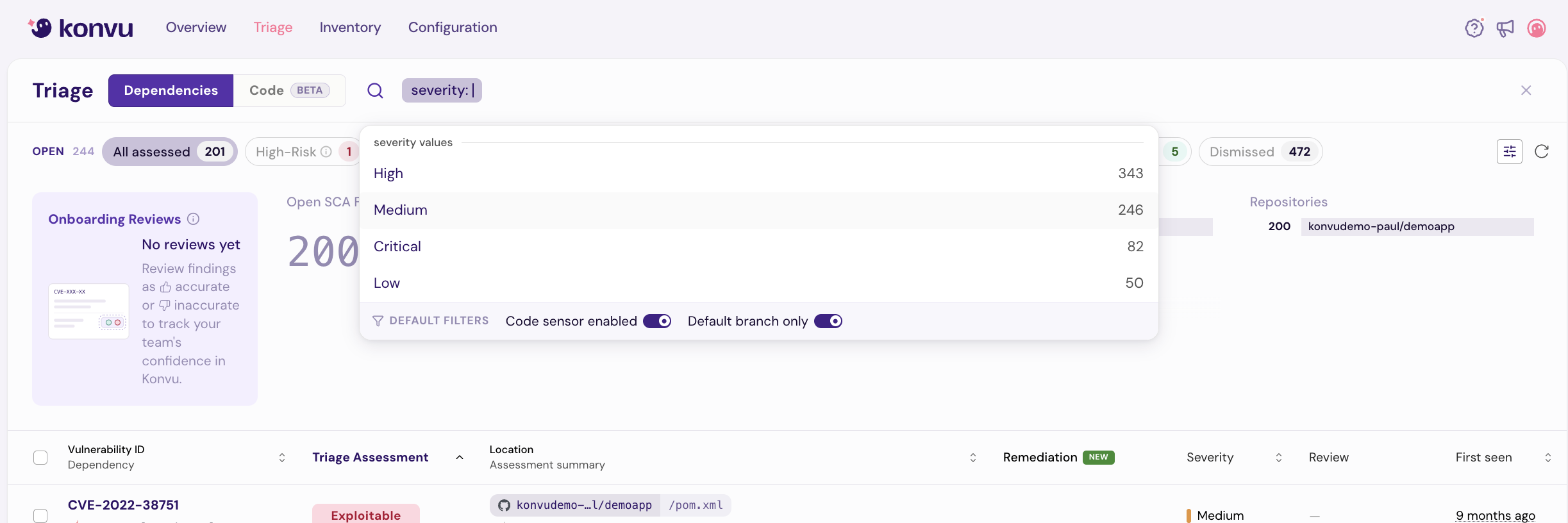
Use the search bar to combine multiple filters. Type to search by CVE, dependency name, or repository, or select a filter category from the dropdown:
| Filter | Values | Example |
| --------------------- | ------------------------------------------------------ | --------------------------------------- |
| **CVE / GHSA** | Any CVE or GHSA identifier | `CVE-2021-44228` |
| **Severity** | Critical, High, Medium, Low | Show only Critical findings |
| **Assessment status** | Success, Ongoing, Not started, Failed | Focus on completed assessments |
| **Assessment result** | Exploitable, False Positive, Needs input, Inconclusive | Filter to exploitable only |
| **Dependency** | Package name | `log4j-core`, `lodash` |
| **Repository** | Repository name or URL | `my-org/backend-api` |
| **Ecosystem** | npm, Maven, PyPI, NuGet, RubyGems, Go, etc. | Show only Maven findings |
| **Scanner source** | Snyk, Semgrep, Dependabot, Endor Labs, Arnica | Findings from a specific tool |
| **Source state** | Open, Dismissed, Fixed, Auto-dismissed, Muted | Filter by scanner-side status |
| **Branch** | Git branch name | Filter to `main` only |
| **Fix available** | Fixed, Not fixed | Show only findings with a known fix |
| **Technology** | Language/framework detected by stack analysis | Java, Python, .NET |
| **First seen** | Date range | Findings discovered in the last 30 days |
Filters combine with AND logic. *Example: Severity = Critical + Assessment result = Exploitable* shows only critical findings that are confirmed exploitable.
{% hint style="info" %}
By default, the list shows findings from default branches (main/master) with open scanner state. Toggle **"Show PR branches"** to include findings from pull request branches.
{% endhint %}
## Sorting
Click any column header to sort the table. Available sort columns:
* **Recommendation** (default): Prioritizes findings Konvu recommends acting on, with "to fix" at the top.
* **Severity**: Critical > High > Medium > Low.
* **First seen**: When the finding was first ingested.
* **Last updated**: Most recently changed findings first.
* **Dependency**: Alphabetical by package name.
* **Scanner source**: Grouped by scanner.
Click the same column header again to toggle between ascending and descending order.
## Bulk actions
### Bulk dismiss
Select multiple findings using the checkboxes, then click **Dismiss** to dismiss them in your connected scanner. This is useful for clearing out batches of false positives.
You can select up to 500 findings per bulk dismiss operation. The dismissal writes back to the original scanner (Snyk, Dependabot, etc.), so the findings are marked as dismissed in both Konvu and your SCA tool.
## Navigating findings
Click any row to open the finding detail page, which shows:
* The vulnerability description and affected dependency
* Assessment result with [evidence](/konvu/triage-and-remediation/exploitability-assessment/reading-an-assessment.md) (stack analysis, AI investigation, runtime data)
* Linked scanner findings and their states
* The repository, manifest location, and branch
Use keyboard navigation (arrow keys) to move between findings without returning to the list.
---
# Agent Instructions
This documentation is published with GitBook. GitBook is the documentation platform designed so that both humans and AI agents can read, navigate, and reason over technical content effectively. Learn more at gitbook.com.
## Querying This Documentation
If you need additional information that is not directly available in this page, you can query the documentation by asking a question.
Perform an HTTP GET request on the following URL with the `ask` and `goal` query parameters:
```
GET https://docs.konvu.com/konvu/triage-and-remediation/triage/triage-list-view.md?ask=&goal=
```
`ask` is the immediate question: it should be specific, self-contained, and written in natural language.
`goal` is what the user is ultimately trying to achieve, the reason they need the answer. Sharing it helps GitBook give you a better, more relevant answer. A goal is most helpful when it describes the outcome the user wants rather than restating the question. For example, with `ask=how do I create an API token`, a goal like `automate deployments from our CI pipeline` lets GitBook tailor the answer to that use case.
The response will contain a direct answer to the question and relevant excerpts and sources from the documentation.
Use this mechanism when the answer is not explicitly present in the current page, you need clarification or additional context, or you want to retrieve related documentation sections.