> For the complete documentation index, see [llms.txt](https://docs.konvu.com/konvu/llms.txt). Markdown versions of documentation pages are available by appending `.md` to page URLs; this page is available as [Markdown](https://docs.konvu.com/konvu/prevent/claude-code-guardrails.md).
# Set up Guardrails for Claude Code
Set up and manage the Konvu Guardrails integration for Claude Code.
Guardrails brings security rules from your connected repositories into Claude Code. An administrator adds the plugin to Claude Code managed settings; Claude Code then installs it on developer computers. [Guardrails on your computer](/konvu/prevent/guardrails-on-your-computer.md) explains what the plugin installs and checks during a session.
## Create the integration
First, [connect your source code to Konvu](/konvu/get-started/connect-your-environment/source-code.md) and make sure Guardrails has mapped rules for those repositories. You also need access to Konvu **Integrations** and your organization's Claude Code **Managed settings**.
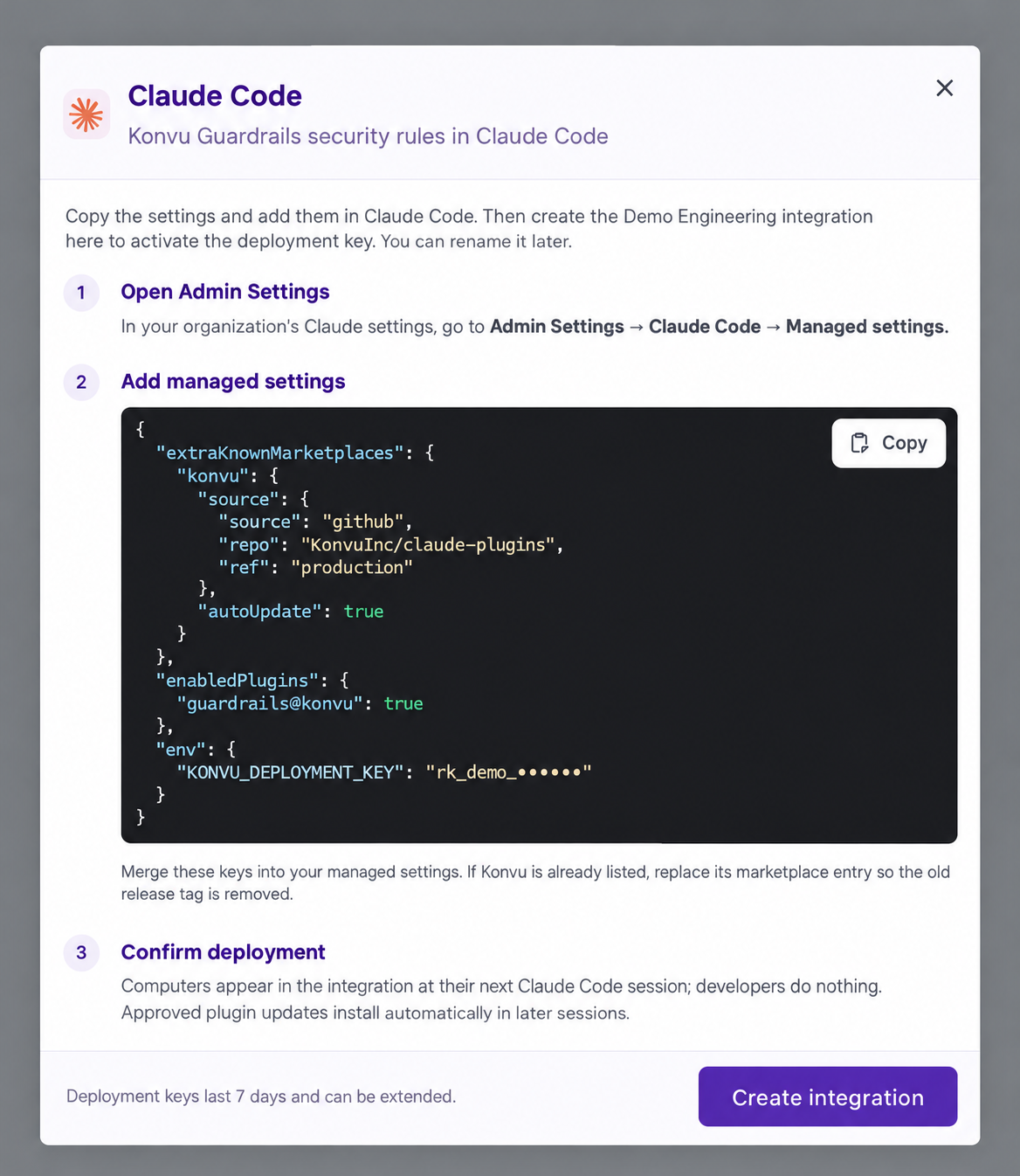
1. In Konvu, open **Integrations → Claude Code → Add integration**.
2. Copy the JSON from the setup dialog into **Admin Settings → Claude Code → Managed settings**. Merge it with your existing settings. If `konvu` is already listed as a marketplace, replace that entry so an old release tag does not remain. This enables `guardrails@konvu` for the fleet and provides a deployment key for computer enrollment; you are adding settings, not uploading plugin code.
3. Return to Konvu and select **Create integration**.
4. Start a new Claude Code session on a developer computer. Claude Code installs the plugin, which enrolls the computer and downloads its repository rules in the background.
## Check and manage it
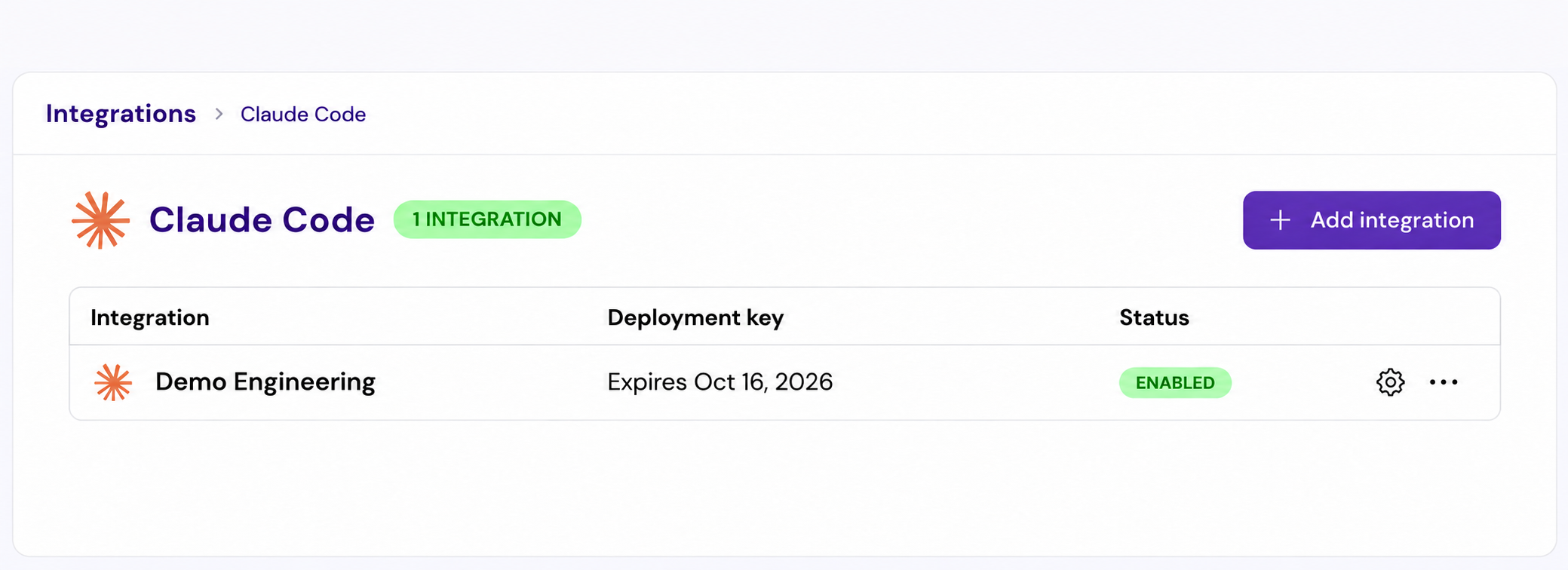
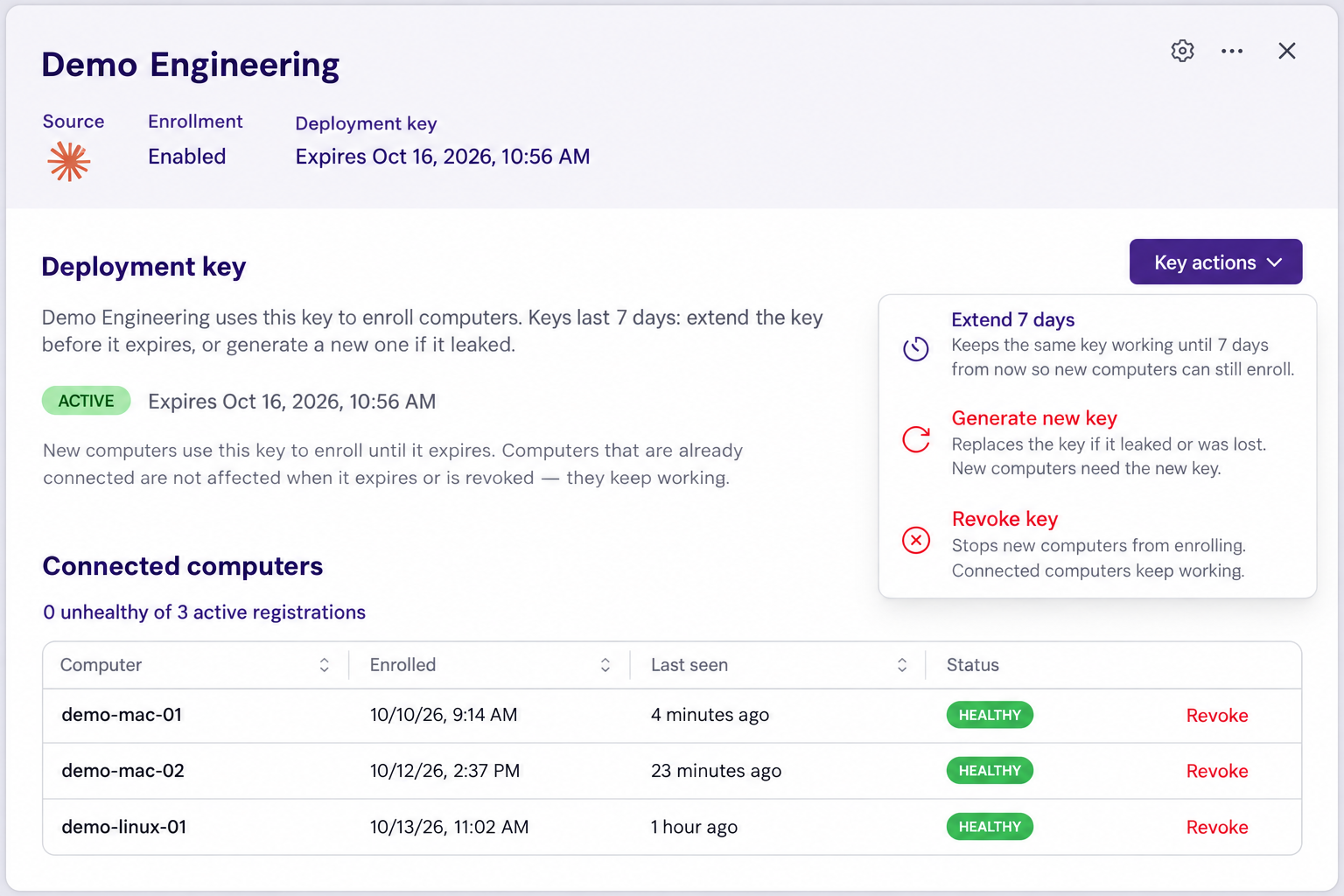
Open **Integrations → Claude Code** and select the integration. Enrolled computers appear after their next Claude Code session; check **Last seen** and **Status**.
The deployment key enrolls new computers. It expires after seven days unless extended; computers already enrolled keep working. Under **Key actions**, you can extend it, generate a replacement, or revoke it. If you generate a new key, update Claude Code managed settings so new computers can enroll.
To disconnect one computer, select **Revoke** in its row. A computer that still receives a valid deployment key through managed settings can enroll again; rotate or revoke that key to prevent it. The integration menu also lets you rename or delete it.
Treat the deployment key in managed settings as a credential: Claude Code passes it to processes it starts, including shell commands.
---
# Agent Instructions
This documentation is published with GitBook. GitBook is the documentation platform designed so that both humans and AI agents can read, navigate, and reason over technical content effectively. Learn more at gitbook.com.
## Querying This Documentation
If you need additional information that is not directly available in this page, you can query the documentation by asking a question.
Perform an HTTP GET request on the following URL with the `ask` and `goal` query parameters:
```
GET https://docs.konvu.com/konvu/prevent/claude-code-guardrails.md?ask=&goal=
```
`ask` is the immediate question: it should be specific, self-contained, and written in natural language.
`goal` is what the user is ultimately trying to achieve, the reason they need the answer. Sharing it helps GitBook give you a better, more relevant answer. A goal is most helpful when it describes the outcome the user wants rather than restating the question. For example, with `ask=how do I create an API token`, a goal like `automate deployments from our CI pipeline` lets GitBook tailor the answer to that use case.
The response will contain a direct answer to the question and relevant excerpts and sources from the documentation.
Use this mechanism when the answer is not explicitly present in the current page, you need clarification or additional context, or you want to retrieve related documentation sections.